Blog · How-to
How to Edit Auto Captions on Shorts: Look Beyond the Typos
Auto captions can be edited before you export. Don't stop at typos; look at names, numbers, and awkward sentences too. A single pass makes a Short look far cleaner.
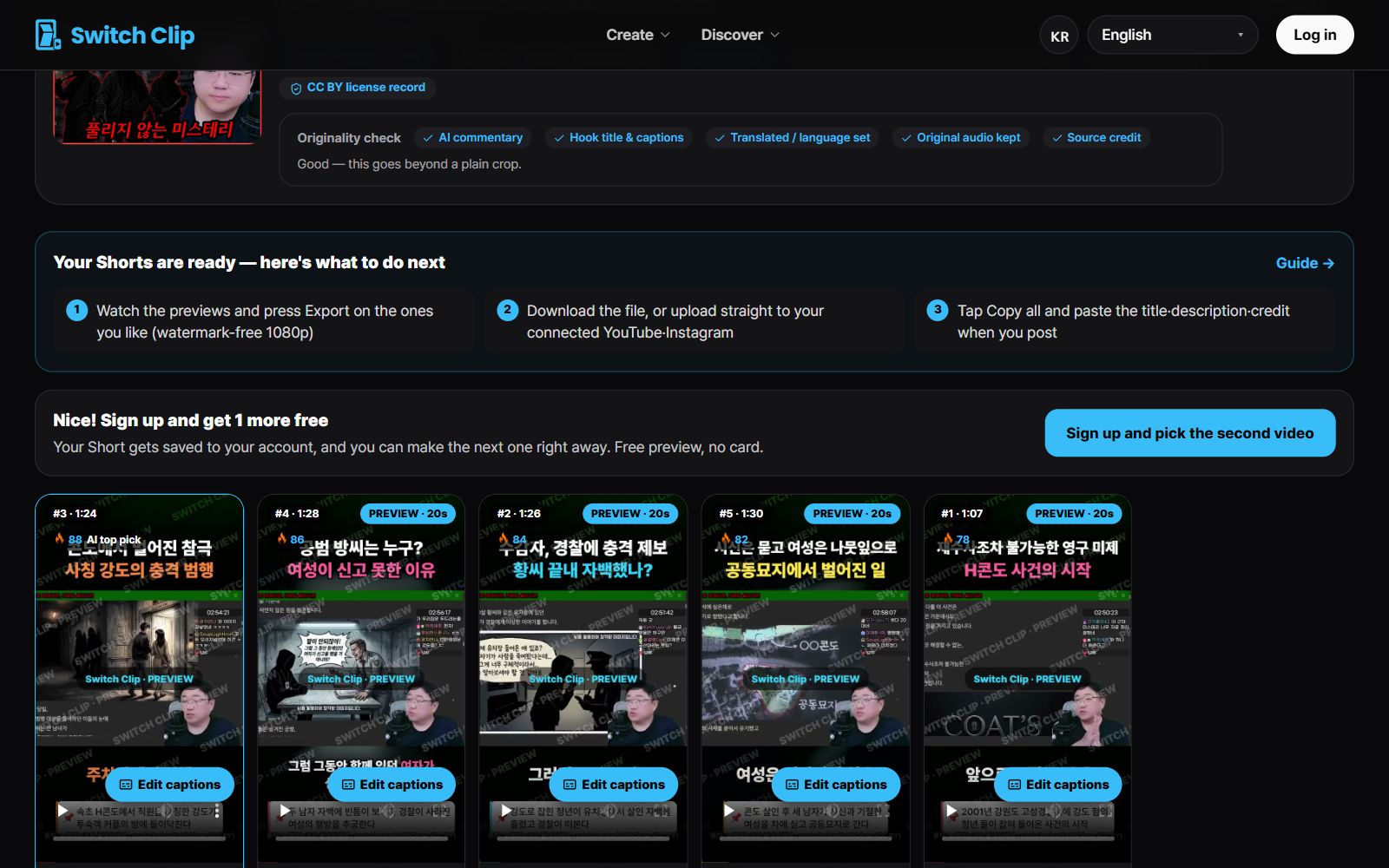
What to check besides typos
- Names of people, places, and products
- Numbers, dates, and units
- Sentences that run too long for one screen
- Words written differently from what was meant
The order to fix things in
- 1
Watch it through once
Play the preview and note the spots that catch your eye.
- 2
Fix names and numbers
Start with the mistakes that would cost you credibility.
- 3
Smooth out the sentences
Reword the places that read awkwardly so they sound natural.
- 4
Check on mute
See that the content still flows when you read only the captions.
A rule to keep when editing
Captions should match what was actually said in the video. Resist adding words that weren't spoken just to make it punchier. Writing down exactly what was said, accurately, works best.
Pick a video, get up to 6 Shorts
Switch Clip gathers videos you are allowed to reuse and public-domain classics. Pick one and you get Shorts with captions, a title, commentary and the credit line. Your first one is free, no sign-up.
Make a Short for freeFrequently asked questions
When can I edit captions?
Before you export. Check them in the preview, then make your changes.
Does editing captions cost extra?
Billing is based on the number of Shorts you export. You can see the details on the pricing page.
What if there are too many mistakes?
The clearer the speech in the original, the more accurate the captions. Try making it again from a video with clean audio.